
From application to a case file you keep current
- Step 1
Sign up
Signing up is free and immediate. Fill in your name and contact details, accept the terms, and your account is created on the spot. You get a username and a temporary password to copy; on first login you set your own password, which no one at PocketPeshi can see.
- Step 2
Get your login and add your clients and cases
Set up a client, then a case file: court, case number, parties, current stage and the next date. Add your assistants from Settings so they work from the same files. Creating cases and clients needs a connection; everything after that can be done offline.
- Step 3
See what is fixed today and this week
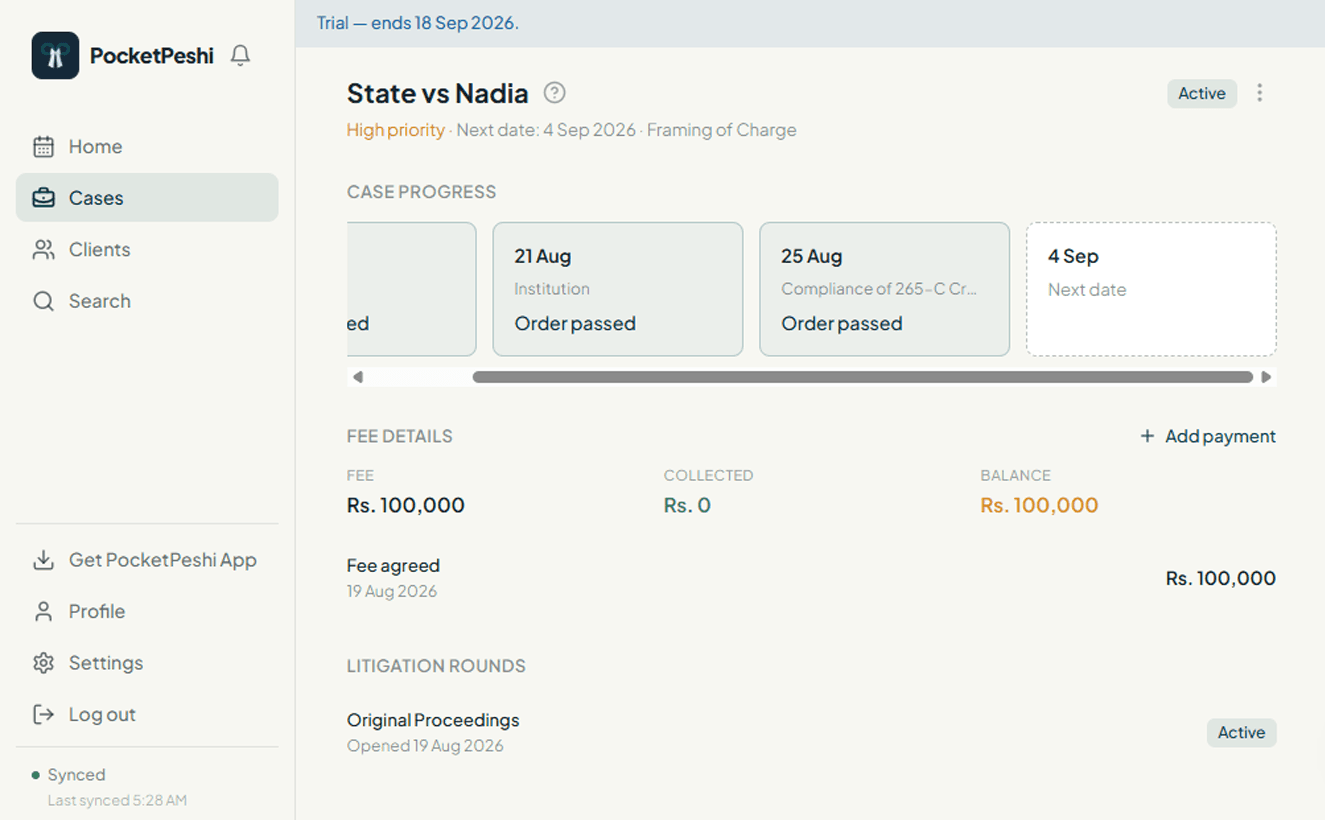
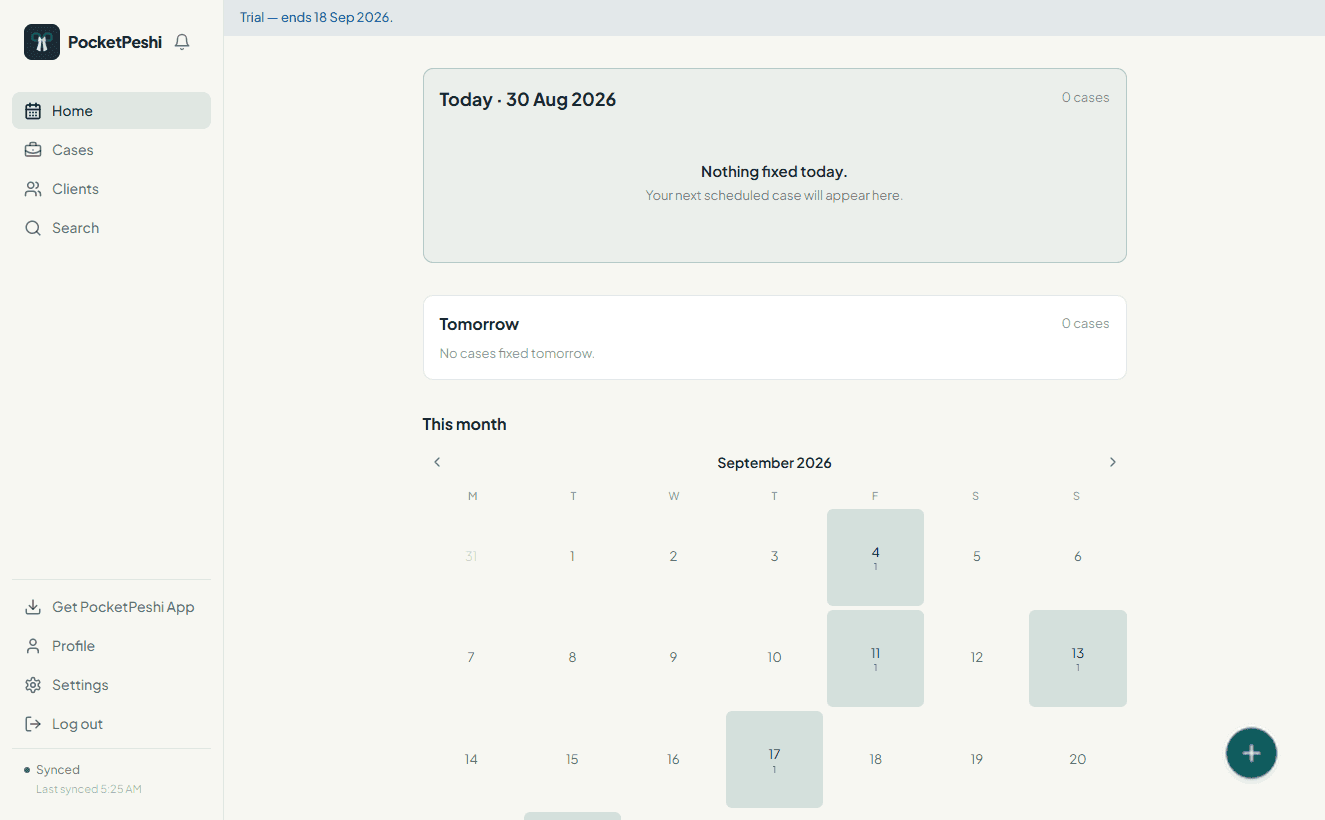
Home opens on the cases fixed today and tomorrow. The monthly calendar shows how many hearings sit on each date, so you can plan a heavy week in advance and spot a free day. Missed dates — a passed hearing with no proceeding recorded — are listed separately.
- Step 4
After court, record the proceeding and fix the next date
Open the case, note what happened and the outcome, set the stage if it moved, and fix the next date — in one step. If there is no signal in the court building, the record is saved on the device and syncs when you are back on data. It is marked pending until the server confirms it.
- Step 5
Track fees and upload documents as you go
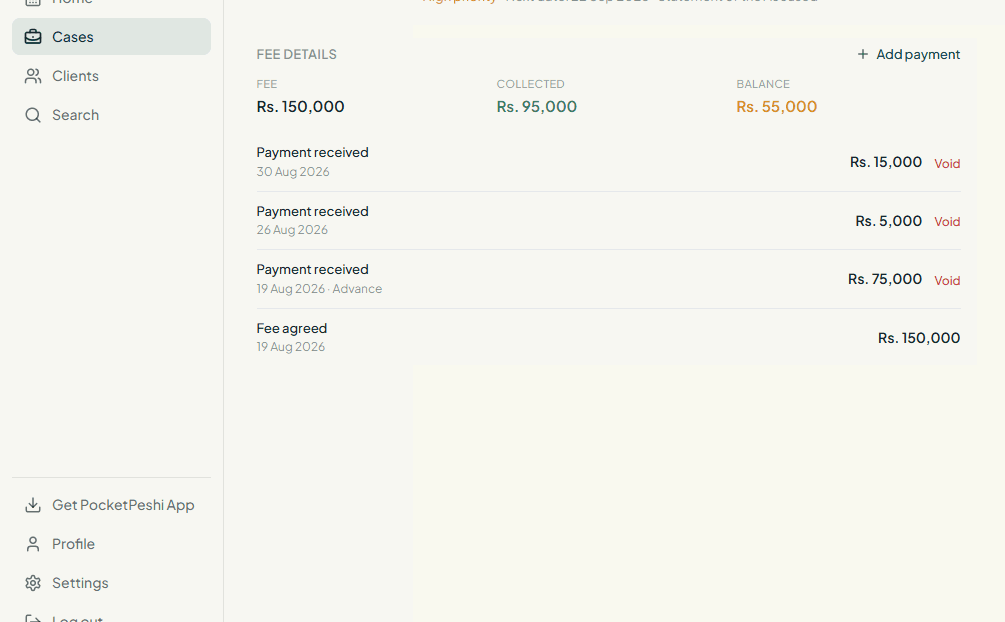
Add each fee payment when the client pays. Capture the order sheet with the camera before you leave, or upload pleadings and evidence later. Both stay attached to the case, so the file is complete without a separate folder.
What your assistant can do
An assistant on your workspace works from the same case files. They can add clients and cases, record proceedings, fix dates, record fee payments and upload documents. Voiding a fee entry stays with the lawyer. You add or remove assistants from Settings.
Get started, free
PocketPeshi is free to use. A Premium plan is on the way.
Get startedAlready using PocketPeshi? Log in